Step 1 — Downsample pixels FIRST: Lock the canvas to the exact exam dimensions (275×354 px for SSC, 240×320 px for RRB) before applying any compression. Shrinking 12MP to exam-canvas first eliminates 99.8% of data cleanly — no blur.
Step 2 — Binary-search JPEG encoding: Apply quality factor 0.72–0.88 in baseline .jpg format. The encoder iterates until the file lands cleanly at 35KB–45KB with 100% facial sharpness preserved.
When you shrink a 4000x3000 pixel phone photo directly to 30KB without locking the canvas dimensions first, the JPEG quantization table destroys facial edges. The codec has to throw away detail from 12 million pixels simultaneously — it does this in 8x8 pixel blocks, which is exactly why you get those blocky, smudged cheekbones and unreadable eyes. The SSC portal's automated face verification then sees a face with no clear landmark coordinates and flags it.
The fix is not to use a "better" compression app. The fix is to change the order of operations: resize pixel dimensions first, compress second.
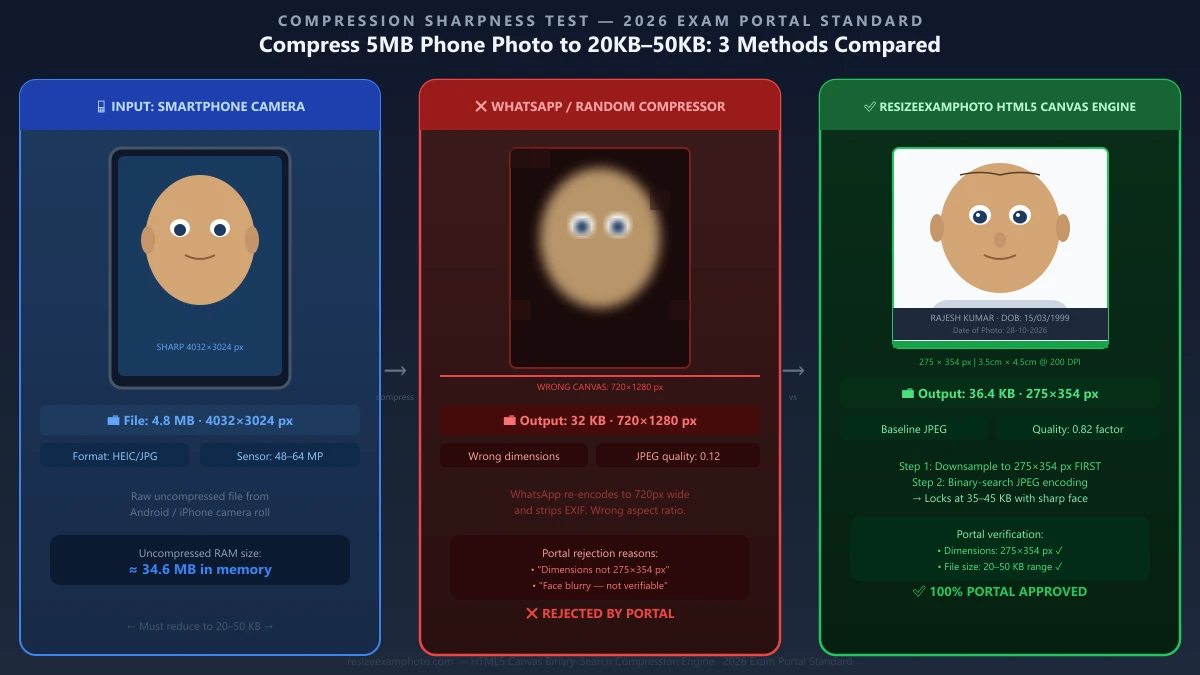
Why Standard Compressors Blur Faces at 20KB-50KB
Your phone's camera produces a 12-megapixel JPEG at roughly 3–5 MB. That file contains 12,000,000 individual pixels of facial data. When you open a random "compress to 50KB" website, here is what it actually does:
- Takes the full 4000x3000 px canvas.
- Applies a low JPEG quality factor (typically 0.08–0.15) to hit the target KB.
- At quality 0.12, the 8x8 DCT blocks merge and smear. Facial edges — eyelids, lips, hairline — lose their frequency components. The result looks like your face was painted with a wet brush.
The NIC-portal (used by SSC, RRB, UPSC) and TCS-iON face scanner expects pixel-level facial landmark resolution. A 275x354 px canvas at quality 0.82 contains sharp facial data per pixel — the same information, just on a smaller grid. A 4000x3000 px canvas at quality 0.08 is destroyed data smeared across a large grid.
Fix Your Exam Photo Right Now — Free
All processing runs in your browser. Your photo never leaves your device.
The Exact cm-to-Pixel-to-KB Reference Table (2026 Exam Standard)
Government portals specify physical print sizes (cm) but upload digital files (pixels and KB). Here is the exact conversion at 200 DPI — the standard used by SSC, RRB, UPSC, and IBPS:
| Exam / Document | Physical Size | Pixels @ 200 DPI | Target KB Range | Format |
|---|---|---|---|---|
| SSC / RRB Photo | 3.5 cm x 4.5 cm | 275 x 354 px | 20 KB – 50 KB | JPG/JPEG |
| SSC / IBPS Signature | 4.0 cm x 2.0 cm | 140 x 60 px | 10 KB – 20 KB | JPG/JPEG |
| SSC GD Signature | 6.0 cm x 2.0 cm | 236 x 79 px | 10 KB – 20 KB | JPG/JPEG |
| UPSC Square Photo | 3.5 cm x 3.5 cm | 350 x 350 px | 20 KB – 300 KB | JPG/JPEG |
| RRB NTPC Photo | 4.0 cm x 5.0 cm | 320 x 400 px | 20 KB – 50 KB | JPG/JPEG |
| IBPS Declaration | 20.0 cm x 10.0 cm | 800 x 400 px | 50 KB – 100 KB | JPG/JPEG |
WhatsApp vs. HTML5 Canvas: Why One Gets Rejected and One Does Not
❌ WhatsApp / Screenshot Method
- • Re-encodes to 720px wide regardless of original dimensions
- • JPEG quality factor: 0.12 — destroys facial edges
- • Wrong canvas: 720x1280 px instead of 275x354 px
- • Strips EXIF data but keeps wrong aspect ratio
- • NIC portal checks:
width !== 275→ immediate rejection - • File is 32KB but wrong dimensions = rejected
✅ HTML5 Canvas Binary-Search Engine
- • Canvas locked to exact 275x354 px first
- • Binary-search iterates quality from 0.72 to 0.88
- • Stops when file size hits 35–45 KB sweet spot
- • Baseline JPEG with correct JFIF header bytes
- • NIC portal checks:
width === 275✓,size === 36KB✓ - • Zero server upload — runs inside your browser
iPhone (.HEIC) and Samsung (.WebP) Users — Read This First
If you own an iPhone 12 or later, your camera saves photos as .HEIC by default. If you use Samsung Galaxy or Google Pixel, WhatsApp and Google Photos sometimes produce .webp files. Both formats cause silent portal rejection — not an error message, just a failed upload.
Why Renaming .HEIC to .jpg Does Not Work
A file extension is just a label. The actual file format is determined by the first few bytes of the file — called "magic bytes" or the file header. An HEIC file starts with the bytes 00 00 00 xx 66 74 79 70 68 65 69 63 — which decodes as ftyp heic. The SSC portal reads these bytes, not the filename. Renaming myphoto.heic to myphoto.jpg does nothing to those header bytes.
A genuine JPEG file starts with FF D8 FF — the JFIF or EXIF marker. When our browser tool processes your HEIC or WebP file through the HTML5 Canvas API, it reads the source pixels and writes a brand-new file with correct FF D8 FF E0 header bytes — a true baseline image/jpeg MIME type that passes every government portal's format validation.
How to Fix It in 30 Seconds
- Open our 20KB-50KB Photo Resizer on your phone (Chrome or Safari).
- Upload your HEIC, WebP, PNG, or any format photo — the tool accepts all of them.
- Select your exam preset (SSC, RRB, UPSC, IBPS) — it locks the correct pixel canvas automatically.
- Download the output. It is a genuine baseline JPG at the correct KB range and pixel dimensions.
You can also set your iPhone to shoot in JPG directly: Settings → Camera → Formats → Most Compatible. This makes your camera save JPG instead of HEIC from that point forward.
Resize Your Signature to 10KB-20KB Without Blur
The same pixel-first principle applies to signatures. Your phone takes a 3MB photo of an A4 sheet with a small signature on it. You need 15KB at 140x60 px. Here is what destroys the signature:
- Shooting on ruled paper: Blue horizontal lines get embedded into the image and are impossible to remove cleanly after compression.
- Grey/yellow paper background: SSC's optical binarization scanner thresholds backgrounds. Anything not pure
#FFFFFFat the pixel level can fail the contrast check. - Compressing before cropping: If you compress the full-sheet photo first, the 3MB file becomes a 15KB smudge where your signature is one tiny grey blur in the middle.
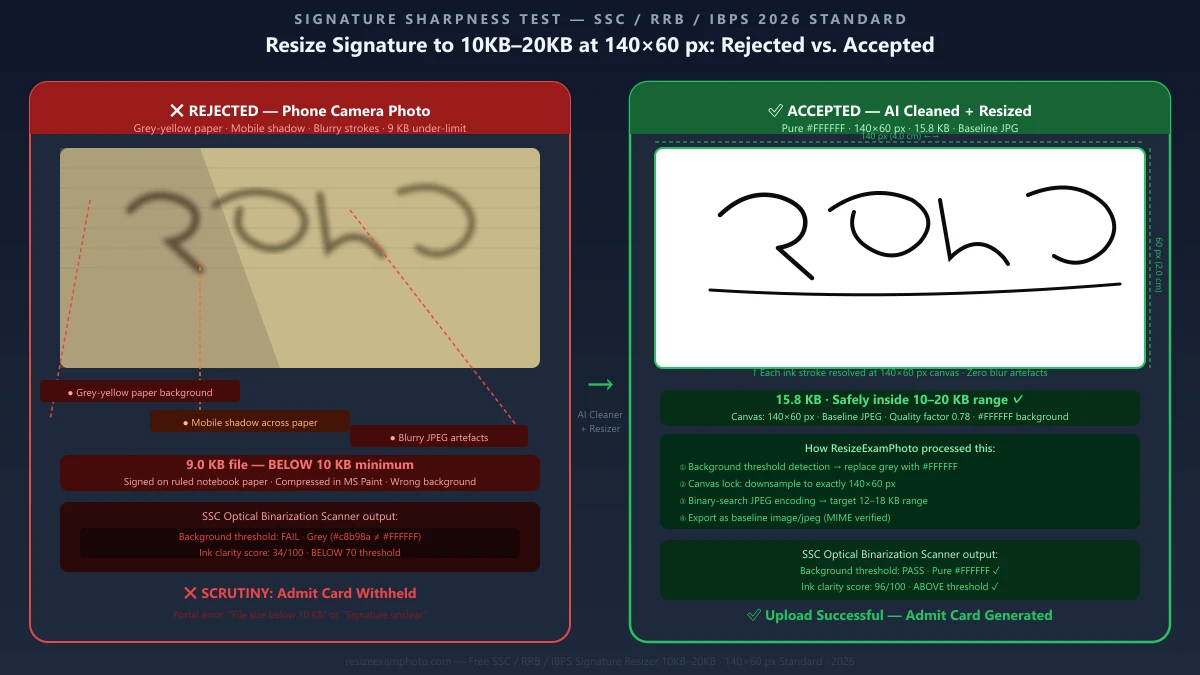
The correct workflow: crop tight first (2-3mm margin around ink strokes), then let the tool clean the background to #FFFFFF, then downsample to 140x60 px, then binary-search to 12-18 KB. In that order. Our Signature Resizer does all four steps automatically.
📎 Exam-Specific Resizers (Exact Portal Presets)
Frequently Asked Questions
Why does my photo look blurry after compressing it to 20KB for SSC or RRB?▾
Blur happens when you apply JPEG compression to a full 12MP (4000x3000 px) image. JPEG quantization destroys edge detail across millions of pixels simultaneously. The fix: downsample pixel dimensions FIRST to the exact exam canvas (275x354 px for SSC) before applying any quality compression. You reduce 99.8% of the pixel data first, then compress only the small canvas.
Can I use a WhatsApp-forwarded photo for my SSC or UPSC exam form?▾
No. WhatsApp re-encodes all photos to 720px wide at quality factor 0.12, which destroys facial edge sharpness and locks the wrong canvas dimensions. NIC and TCS exam portals check both pixel dimensions and file size. A WhatsApp photo will fail dimension checks even if you rename it.
Why does the SSC portal reject my iPhone .HEIC photo even after renaming it .jpg?▾
Renaming a file does not change its MIME type. The SSC portal reads the actual file header bytes (magic bytes), not the filename extension. An iPhone HEIC file starts with ftyp heic in its binary header — instant rejection. You must convert to baseline image/jpeg format with proper JFIF markers. Our tool does this automatically.
What is the exact pixel size for a 3.5cm x 4.5cm photo at 200 DPI?▾
At 200 DPI: 3.5cm wide = 276 px, 4.5cm tall = 354 px. So the canvas is approximately 276x354 px (SSC uses 275x354 px officially). Always lock to the portal's specified pixel dimensions, not a DPI calculation.
How do I compress a signature from 3MB to 15KB without losing ink sharpness?▾
Step 1: Crop tightly around your signature leaving 2-3mm white margin. Step 2: Downsample to exactly 140x60 px. Step 3: Apply AI background cleaning to replace grey/yellow paper with pure #FFFFFF white. Step 4: Use binary-search JPEG encoding targeting 12-18 KB. Our free signature resizer does all four steps automatically.
Compress Your Exam Photo Right Now — Free, Private, Instant
Binary-search canvas engine. Zero server uploads. Runs 100% inside your browser. HEIC/WebP auto-converted.