Your SSC CGL, CHSL, GD, or MTS form is live — but the signature upload fails at 9.8 KB, or your webcam keeps throwing a red-border warning. Fix both problems right now:
- Live Photo: Use the mySSC Android app with back camera, facing daytime window light or an LED bulb in front of your face — never a laptop webcam in a dim room.
- Signature File: Must be JPG, strictly 10.0 KB to 20.0 KB, pure #FFFFFF white background, 4.0 cm x 2.0 cm (140x60 px), cursive running hand only.
- Grey Background Fix: Use our free AI Signature Cleaner — it strips the grey phone shadow to pure white and locks the file between 12 to 18 KB automatically.
The Reality Check: Why Lakhs of SSC Forms Still Get Rejected After the "Live Photo" Update
Here's what most aspirants believe: "SSC shifted to live webcam photos, so photo rejection is over." Dead wrong.
What actually happens: SSC's portal now handles the photograph itself — you don't upload a pre-clicked photo anymore. But the signature still requires a manually uploaded JPG file. And that file goes through an automated optical scanner during the scrutiny stage, which is 2 to 4 weeks after your form submission, right when you've completely forgotten about it.
Then one fine morning, two weeks before your exam, your Application Status reads: "Document Under Scrutiny — Admit Card On Hold." The culprit is almost always one of three things: a grey-background signature, a blurry signature due to phone camera compression, or a signature signed in block capital letters.
And separately, thousands of candidates with perfectly good intent can't get past the live photo screen — the webcam button stays greyed out, or the portal keeps showing a red border around their face no matter how many times they retake it.
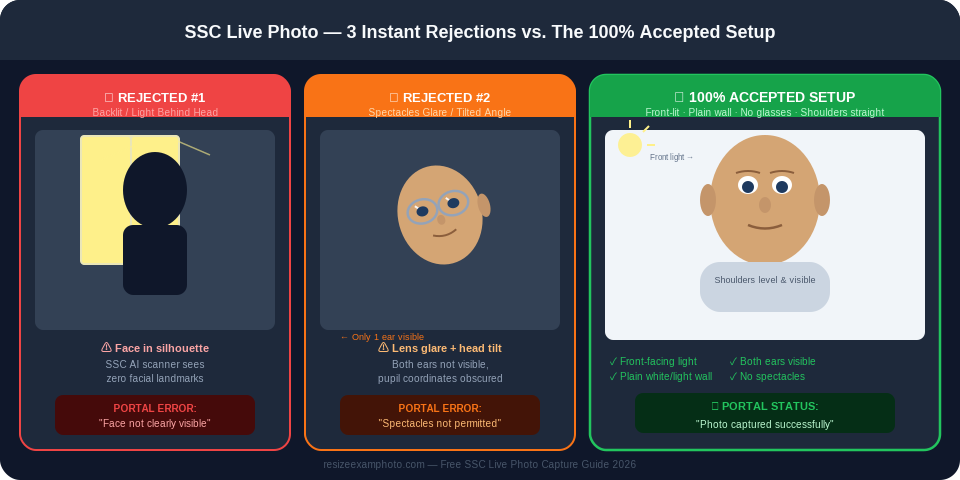
Part 1: Mastering the SSC Live Photo Capture (Webcam vs. mySSC Mobile App)
Why Your Laptop Webcam Keeps Failing
Most budget laptops ship with a 720p webcam with a tiny 1/4-inch sensor. In a typical hostel or bedroom setup — one tubelight overhead, windows behind you — the sensor captures a grainy, underexposed face with a blown-out background.
The SSC portal's face detection algorithm needs: minimum 80% of the oval frame filled by your face, both eyes clearly detected, both ears visible, and a face-to-background contrast ratio above a set threshold. A 720p webcam in a dim room with a tubelight directly above your head fails 2 out of 4 checks every single time.
The 3-Step mySSC Mobile App Trick (Works 10x Better)
The SSC's official mySSC Android app (available on Google Play) lets you complete the live photo capture using your phone's back camera — which is typically a 48MP or 64MP sensor, leagues ahead of any laptop webcam.
- Position yourself against a plain light wall — a cream or white-painted wall, or a plain white bedsheet taped flat. Nothing with patterns, curtains, or almirahs in the background.
- Light source in front of your face, not behind. Sit facing a window during daytime. If it's evening, place an LED desk lamp or phone torch at face level, 1 to 2 feet in front of you. Never use overhead tubelight as the only source.
- Align your face in the oval guide — hold the phone at arm's length. Eyes level with camera. Chin and forehead both inside the oval. Both ears must be visible. Shoulders straight, neutral expression.
The Spectacles Trap — Even Power Glasses Get You Rejected
This catches hundreds of genuine candidates off guard. You've worn your prescription glasses for 15 years. You're filling the SSC CGL form. The portal asks for a live photo. You sit down, click capture — and get an error.
Here's why: SSC's facial verification system uses pupil coordinate mapping. Any lens — even completely transparent prescription glass — creates a specular reflection that obscures the pupil center. The algorithm flags it as "face landmark detection failed" and shows a red validation border.
Fix: Remove your glasses for just 5 seconds during capture. Put them back on immediately after. This is explicitly documented in SSC official notifications under "Live Photo Rules."
Part 2: The 10KB to 20KB SSC Signature Trap (Why Normal Compressors Ruin Your Sign)
The Math Behind Why Basic Compressors Destroy Signatures
Your phone takes a photo at roughly 3 MB (3,000 KB). The SSC portal demands a signature file strictly between 10.0 KB and 20.0 KB. That's a 150x to 300x file size reduction.
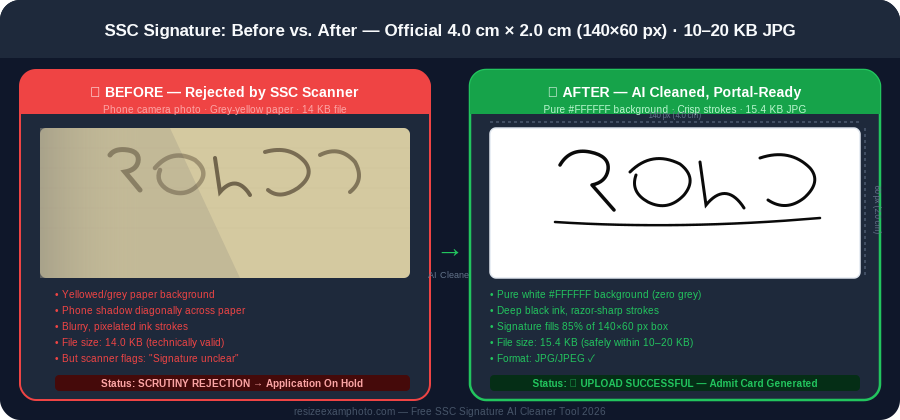
When you use a random online compressor — or worse, MS Paint's "Save As" with quality reduction — it crushes the resolution so aggressively that two things happen simultaneously: the white paper turns into a muddy greyish-yellow block (JPEG compression artifacts muddy near-white pixels), and the ink strokes of your signature dissolve into a blurry smudge.
The SSC scrutiny scanner then processes this file. The optical binarization algorithm (which converts your signature to pure black-and-white for verification) finds: a grey background that isn't white enough to threshold cleanly, and ink strokes too pixelated to resolve. Result: "Signature Unclear — Application Under Scrutiny."
Rule #1: White Unruled Paper + Black/Dark Blue Ballpoint (Medium Tip)
Never sign on a ruled notebook page. Those blue horizontal lines photograph alongside your signature. When compressed to 15 KB, JPEG artifacts blend them into your actual signature strokes — the scanner cannot distinguish your ink from the ruled line.
Take a plain A4 sheet. Draw a rectangle of approximately 4.0 cm x 2.0 cm with a light pencil mark. Sign inside it. Photograph from directly above in daylight — hold your phone parallel to the paper, no angle, no hand shadow.
Rule #2: Never Sign in BLOCK CAPITALS
This is an absolute SSC rule with zero exceptions. A signature like "RAHUL SHARMA" written in capital block letters is rejected at scrutiny every time. Under Indian legal convention and explicit SSC notification language, a signature must be a person's unique cursive script — not their printed name.
If you've always signed in capitals, practice your cursive running hand on paper 10 to 15 times and use that for the form. Your signature doesn't need to spell your full name; it just needs to be cursive and consistent.
Rule #3: Removing the Grey Shadow and Hitting 10 to 20 KB Precisely
Real-world scenario: It's 11 PM. You're photographing your signature on an A4 sheet under a bedroom tubelight. Your phone casts a dark grey shadow across the lower half of the paper. You compress it in a random site to 14 KB — technically valid — and upload it to the SSC OTR portal.
Two weeks later, the scrutiny email arrives. The 14 KB file was valid in size, but the grey shadow and JPEG noise made it unscannable at the binarization stage.
The fix takes 30 seconds:
- Open our SSC Signature Resizer (10KB to 20KB) on your phone or PC.
- Upload your signature photo. The AI background cleaner automatically detects the grey/yellow paper area and replaces it with pure #FFFFFF white.
- The tool crops the image to the official 4.0 cm x 2.0 cm (140x60 px) boundary.
- It runs a binary search compression algorithm to land the file precisely between 12 KB and 18 KB — safely inside the 10 to 20 KB window without damaging the ink strokes.
- Download the JPG. Upload to ssc.gov.in. Done.
✨
Clean Grey Signature Background & Resize to 10-20 KB Free
Upload your phone-clicked signature photo. AI strips the grey/yellow background to pure white, crops to 4.0x2.0 cm, and locks the file at 12-18 KB. 100% private — runs inside your browser, zero uploads to any server.
✨ Open AI Signature Cleaner (Free)📸
Open Official SSC Photo & Signature Resizer (3.5x4.5 cm & 4x2 cm)
Dedicated SSC preset: 275x354 px passport photo (20-50 KB) and 140x60 px signature (10-20 KB) — both formatted to exact ssc.gov.in specifications in one tool.
📸 Open SSC Photo & Signature ResizerSSC 2026 Official Specifications — At a Glance
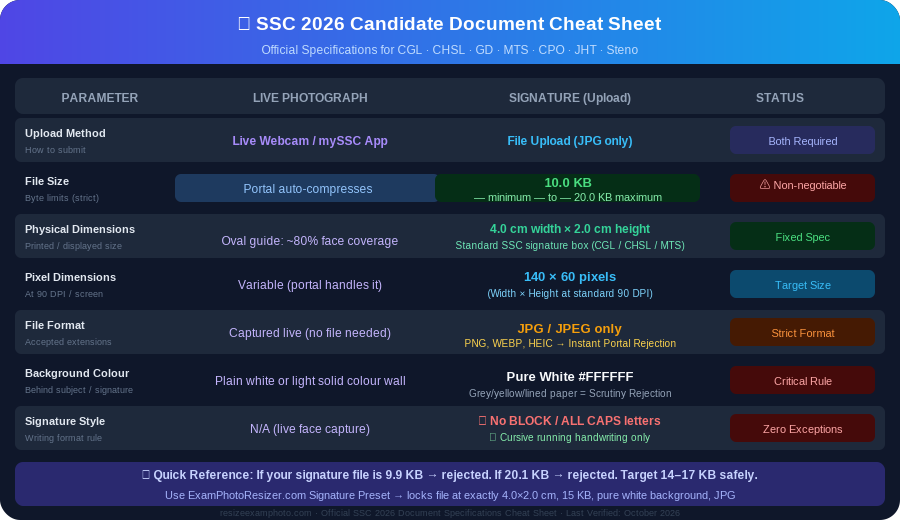
Quick Troubleshooting Table: Common ssc.gov.in Upload Errors & Instant Fixes
| Portal Error Message | Why It Happens | Instant Fix |
|---|---|---|
| "File size must be between 10 KB and 20 KB" | Your file is 9.8 KB (over-compressed, too small) or 20.4 KB (under-compressed, too large). Both fail instantly. Even 20.01 KB is rejected by the server. | Use our 10KB-20KB Signature Resizer — it targets 14 to 17 KB precisely using binary search compression. No guesswork. |
| "Invalid image format" or upload fails silently | Your iPhone saved the photo as .HEIC, or WhatsApp re-encoded it as .WEBP, or you uploaded a .PNG. The SSC portal only accepts .JPG/.JPEG. | ExamPhotoResizer auto-converts HEIC, PNG, WEBP, and AVIF to standard JPG on upload. No manual conversion needed. |
| "Signature appears very small in preview box" | You photographed a full A4 sheet with a tiny signature in the center. When compressed to 15 KB and placed in the 140x60 px box, ink strokes shrink to 10% of the preview area. | Crop tightly around signature edges leaving only 2 to 3 mm white margin before uploading. The tool resizes this tight crop to 140x60 px — keeping ink large and legible. |
| "Webcam not detected / Camera access denied" | Browser camera permissions are blocked, OR another app (Zoom, Teams, WhatsApp Web) has the webcam in an active session, OR antivirus privacy guard is blocking hardware access. | Click the padlock icon in browser URL bar → Site Settings → Camera to "Allow" → reload portal tab. Close all video apps first. Or switch to the mySSC Android app. |
| "Face not detected" or red border on live capture | Insufficient front lighting (face in shadow), head tilt, spectacles glare, both ears not visible, or candidate too close or far from camera. | Position 40 to 60 cm from camera, light source in front of your face, both ears visible, no glasses, neutral expression. Use mySSC app with back camera for best results. |
Frequently Asked Questions
Can I wear glasses in the SSC Live Photo if I have weak eyesight?▾
No. SSC circulars strictly prohibit spectacles, tinted lenses, and sunglasses during live capture, even for candidates with prescription power glasses. The SSC automated face-check algorithm flags lens reflections as pupil obstruction. Remove your glasses completely for the 5-second capture window. You can put them back on immediately after. This rule applies to all SSC exams: CGL, CHSL, GD, MTS, CPO, JHT, and Steno.
Should the SSC signature be done with a black pen or blue pen?▾
Both black and dark blue ink are officially permitted on SSC application forms. However, black ballpoint or gel pen ink gives the best contrast after compression to 10-20 KB. Blue ink can sometimes compress into a faint grey at low file sizes. For safest results, use a black pen with a medium-tip ballpoint on clean unruled white A4 paper.
What happens if I uploaded a signature with a slightly grey background in SSC?▾
A grey or off-white background does not always cause an immediate portal upload error. However, during the scrutiny stage 2 to 4 weeks after form submission, SSC's optical binarization scanner processes all uploaded signatures. If the background-to-ink contrast ratio is below threshold, your application is flagged as "Document Unclear" and your Admit Card is withheld. The safest fix: use our free Signature AI Cleaner to re-upload a cleaned version before the correction window closes.
Is my signature and photo safe on ExamPhotoResizer.com?▾
Yes, completely. ExamPhotoResizer.com uses a 100% client-side, zero-server-upload architecture. Your signature, photo, or any other document never leaves your device. All image processing runs inside your own browser's JavaScript engine using the Canvas API. No file is ever sent to any remote server. You can verify this by turning on airplane mode — the tool still works perfectly.
Fix Your SSC Documents Right Now — Free
All processing is 100% private and in-browser. No uploads to any server. Your OTR profile documents stay with you.